After the Physitrack integration has been enabled for your clinic, each practitioner's Physitrack account must be connected with their Juvonno profile. This article explains how to exchange API keys between Physitrack and Juvonno to establish the connection and enable access to Physitrack features directly from Juvonno.
When to Use This
Use this article when:
- The Physitrack integration has already been configured for your clinic
- You need to connect a practitioner's Physitrack account with their Juvonno profile
- You are adding a new practitioner who requires access to Physitrack
What You Need
Before you begin, ensure you have:
- An active Physitrack subscription
- A Physitrack user account for the practitioner
- Access to both Physitrack and Juvonno
- The Physitrack integration already enabled in Juvonno
Permissions
- Access to the practitioner's profile
Contact your clinic administrator if you do not have the required access.
Linking a Practitioner Profile with Physitrack
You will switch between Physitrack and Juvonno during this process.
Configure the Practitioner in Physitrack
In Physitrack:
- Log in to Physitrack
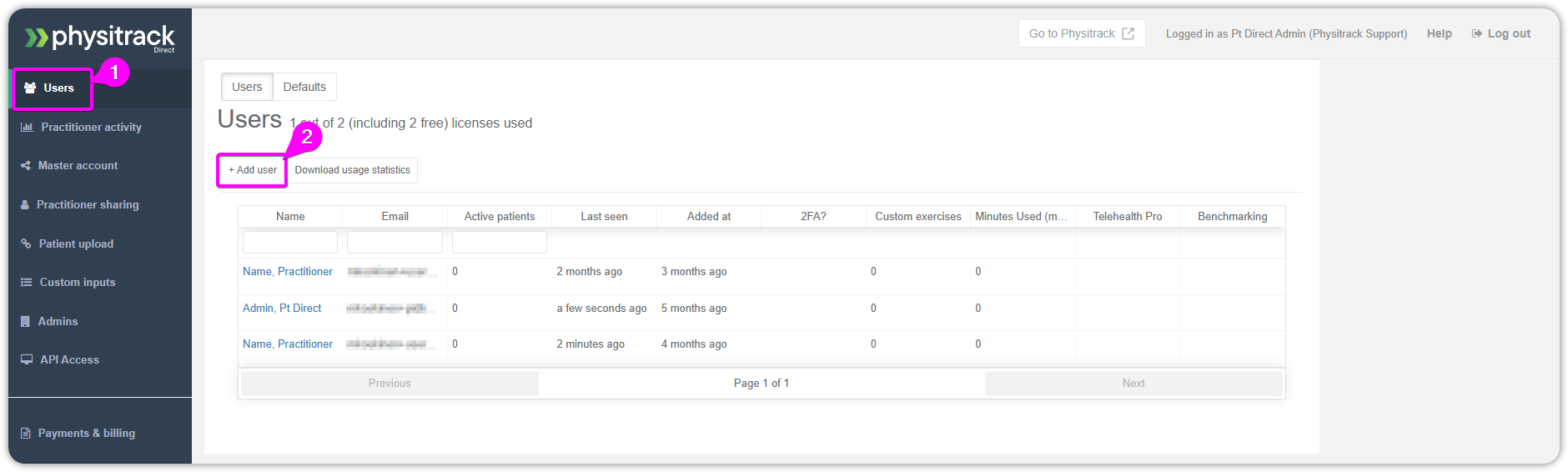
- Click Users
- Select the practitioner you want to configure
- Navigate to the Integrate with section
- Select Juvonno from the drop-down menu
If the practitioner does not already exist:
- Select +Add user
- Enter in the practitioner's details
- Click Save
| Tip: Get help with Physitrack by emailing their team at support@physitrack.com |
Copy the Juvonno API Key
In Juvonno:
- Go to Settings
- Under Staff, select Practitioners
- Open the practitioner's profile
- Click the Login tab
- Copy the API Key shown in the profile
Exchange the API Keys
In Physitrack:
- Paste the Juvonno API Key into the PMS Token field (#1 in image below)
-
Copy the generated Physitrack API Key (#2 in image below)
In Juvonno:
- Return to the practitioner's profile
- Paste the Physitrack API Key into the Physitrack API Key field
- Click Save & Exit
Result
The practitioner's Physitrack account is linked to their Juvonno profile. They can now access Physitrack functionality directly from Juvonno.
Avoid Common Issues
- Ensure the clinic-wide Physitrack integration has been completed before linking individual practitioners
- Verify that the correct practitioner profile is open before copying or pasting API keys
- Copy API keys exactly as displayed, without additional spaces
- Save changes in both Physitrack and Juvonno after entering the required information
- Confirm that the practitioner has an active Physitrack user account
Troubleshooting
I get an error when I try to open the practitioner's profile in Juvonno
- Verify with your administrator that you have permission to view or edit staff profiles
The Physitrack API Key did not appear
- Confirm that the Juvonno API Key was entered correctly into the PMS Token field in Physitrack
The practitioner cannot access Physitrack from Juvonno
- Ensure that both API keys were exchanged successfully and that the clinic-wide Physitrack integration is enabled.
I need to connect a new practitioner
- Create the practitioner in Physitrack first, then repeat the steps in this article to link their account.
Related Articles
How to Set Up the Physitrack Integration
Physitrack Support
Need help with Physitrack?
For support inquiries, contact the Physitrack Support Team at support@physitrack.com