How to Run a Patient Appointments Report
- Go to Reports
- Under Scheduling, select Patient Appointments
- Select your Report Parameters in the available fields:
- Start Date
- End Date
- Status
- Patient
- Sort By
- Output
Click here to learn more about each field
| Start/End Date | Enter the date range for the report |
| Status | Select one or more statuses to include in the report Tip: Hold Ctrl to select more than one status or Crtl + A to select all statuses. |
| Patient | Type-to-search a Patient's name |
| Sort by Status | Check this box to sort the report by status |
| Output | Choose to export to PDF or Excel |
PDF Report Sample
Excel Report Sample
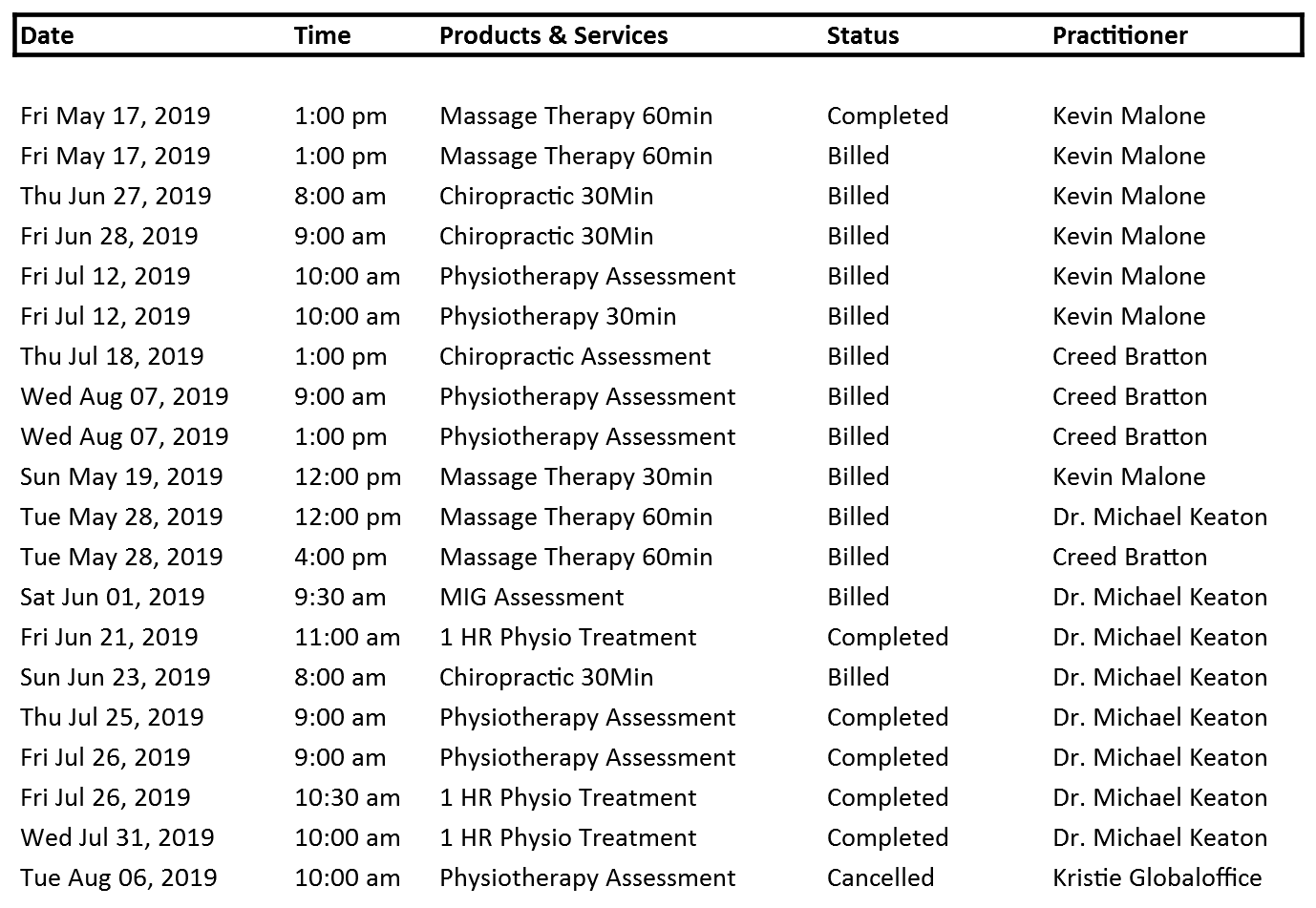
How to Read the Patient Appointment Report
- Date: This is the date that the appointment was on
- Time: The start time of the appointment
- Products & Services: These are the items that were included in the appointent
- Status: This is the stage where the appointment currently is
- Completed: The appointment has occurred, but is not billed
- Billed: The appointment is completed and has been billed
- Cancelled: The appointment did not occur
- Practitioner: The provider who has been assigned to the appointment